Buying a Steam Machine for Roblox? Check Official Support First
Steam Machine runs Linux-based SteamOS, which Roblox explicitly does not support. Here’s what parents should check before buying one as a gift.
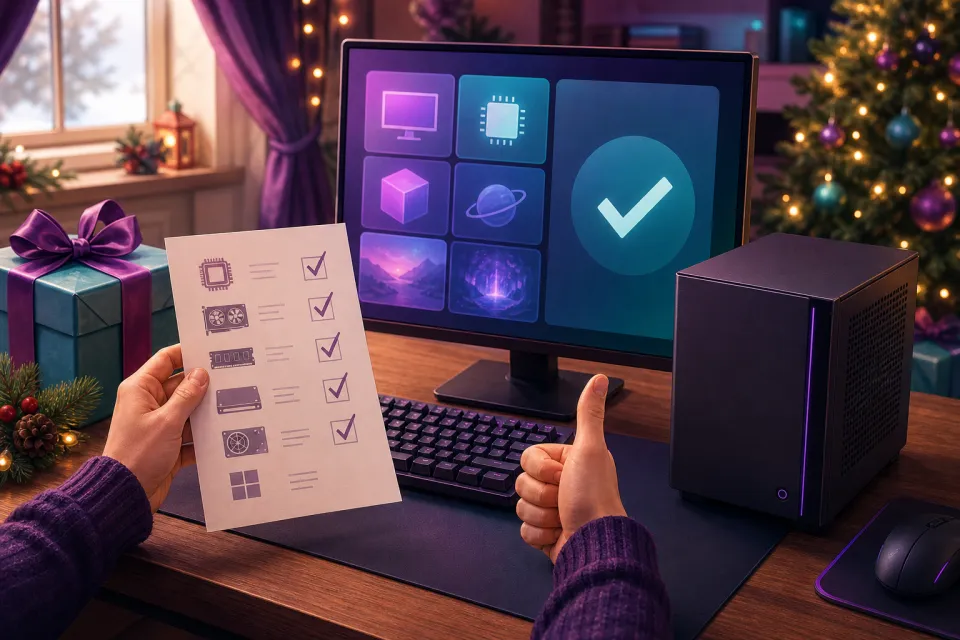
A compatibility check for parents
Do not buy a Steam Machine assuming Roblox is officially supported out of the box. As checked on November 27, 2026, Valve lists SteamOS 3, an operating system based on Linux, as its default software. Roblox’s requirements explicitly state: “Roblox is not supported on Linux.”
That is the key mismatch between Valve’s hardware information and Roblox’s official requirements. It matters more than whether the computer looks powerful enough to run a child’s favorite experience.
This does not mean every claim about playing Roblox on Linux is fabricated. It means an unofficial method and an officially supported installation are different things. For a gift expected to work without adult troubleshooting, that distinction should guide the purchase.
If Roblox is the main reason for buying a computer, our recommendation is to choose a machine with a supported operating system already installed, then check its remaining requirements. Treat Steam Machine as a separate decision about the games it supports—not as an automatic Roblox upgrade.
Why a gaming PC does not run every PC game
A computer’s hardware and operating system answer different questions. The processor, graphics chip and memory determine its computing resources. The operating system is the underlying software that applications must work with. A faster graphics chip cannot, by itself, make an unsupported application compatible.
Valve’s specifications identify the Steam Machine’s software as SteamOS 3, described as Arch-based, with a KDE Plasma desktop. Those names describe a Linux-based system and its desktop interface, not a version of Windows. Valve also says owners can install other applications or another operating system on the hardware page.
For gift shopping, separate these three checks:
- Operating-system compatibility: Does the game’s publisher support the software installed on this exact computer?
- Hardware requirements: Does the computer meet the game’s processor, graphics, memory and storage requirements?
- Your intended setup: Have you checked the screen, controls, network connection and games the recipient actually wants?
Start with compatibility, rather than comparing specifications first. Otherwise, you can spend time choosing storage capacity or accessories before discovering that your must-have game lacks official support.
Also, do not assume switching to a desktop interface changes the operating system. Valve describes Steam Machine’s Desktop Mode as a standard Linux desktop experience. It is not a hidden Windows mode.
What Roblox supports—and what the browser does not solve
Roblox’s computer requirements list installation support for 64-bit Windows 10 or Windows 11, and macOS 10.13 or later. They separately list Chrome OS requirements, including enabling the Google Play Store. Linux is explicitly unsupported. Check the live requirements page again before purchasing, because supported versions can change.
For this buying decision, focus on the operating system supplied with the device. A listing that simply says “gaming PC” does not answer that question. Ask the seller to identify the installed system rather than infer compatibility from the product category.
Opening Roblox’s website is not an adequate play test, either. Roblox’s installation instructions describe using a browser to select an experience, install Roblox Player and launch the application. The website is part of that process; reaching it does not demonstrate that the required player works.
When checking a prospective gift, ask for more than a screenshot of an account page. On a supported device, test launching the recipient’s preferred experiences and actually playing them. Include joining a session, moving around and using the intended controls.
If the child wants to create games, ask that separately. Roblox’s installation guide distinguishes playing through Roblox Player from creating through Roblox Studio. Do not treat a demonstration of one application as proof that the other meets your needs.
Official support is different from an unofficial workaround
Official support means the publisher lists the platform as supported. An unofficial workaround attempts to make software usable outside that stated support. Evidence that someone launched a game is useful context, but it is not a commitment from the publisher to support that configuration.
SteamOS does have tools for running Windows games. Valve describes Proton as a compatibility layer: software that helps Windows games run on Linux. However, Valve’s compatibility documentation also explains that missing Windows functionality or unsupported supporting software can leave games rated Unsupported. Proton is not a promise that every Windows application works.
For a family purchase, evaluate a workaround as an ongoing maintenance responsibility, not a one-time checkbox. Ask who will investigate problems after updates and whether the recipient has another supported way to play. If no adult wants that role, do not build the gift around it.
We do not recommend that children seek out unofficial Roblox downloads, modified installers or scripts to solve this mismatch. Valve itself warns in its desktop FAQ that random internet commands and scripts can compromise data or leave a device in a bad state.
Keep account security separate from compatibility experiments. Follow Roblox’s account-safety guidance: never share passwords, browser cookies, verification codes or backup codes, and enter login details only through official Roblox sign-in routes. A promise to “fix compatibility” is no reason to hand over an account.
Could installing Windows change the answer?
Changing the operating system is a different proposition from making Roblox officially supported on SteamOS. Valve permits installing another operating system, and its Windows resources page includes Steam Machine installation notes. That makes Windows an option to investigate—not something to assume is included or ready for the recipient.
At the time checked, Valve’s instructions say installing Windows requires wiping the device. They also say the SteamOS installer’s dual-boot wizard is not ready. Dual boot means choosing between two installed operating systems when starting the computer. Do not promise a child an effortless switch between both systems based on that future feature.
Before taking this route, have an adult verify:
- Which Windows version will be installed and whether an additional license is needed.
- Whether Valve provides the necessary drivers—the software that lets Windows use the hardware.
- How existing data will be backed up and SteamOS restored if needed.
- Who will install updates, resolve problems and test Roblox afterward.
For a Roblox-first gift, compare that work and total cost with buying a Windows computer ready to use. Our recommendation is the simpler supported setup unless an experienced adult specifically wants the installation project. This is not a performance judgment about Steam Machine; it is a judgment about gift-day reliability.
A short checklist before you wrap it
Use this list before paying, especially if a relative is choosing the gift without knowing which games matter most:
- Write down the must-play games. Make Roblox an explicit requirement rather than asking generally for a gaming computer.
- Check the installed operating system. Match it against each publisher’s current support page.
- Ask what “works” means. Distinguish an official installation from a workaround or a planned operating-system replacement.
- Budget for the complete setup. Include any required software, controls, display and adult setup time.
- Read the seller’s return conditions. Keep receipts and confirm the deadline rather than assuming a holiday extension.
- Plan an adult-led play test. Test the actual games before the return window closes, ideally before wrapping.
Once you have a supported Roblox setup, review Roblox’s parental controls for content, communication, spending and screen time. Available controls depend on the child’s age and account circumstances, so review the settings shown for their account rather than relying on another family’s screenshots.
The buying rule is simple: choose the gift around its supported games as delivered. If Roblox is essential, do not make a SteamOS-based Steam Machine purchase depend on an unofficial fix.
Sources: steampowered.com, Roblox Help, steamgames.com
 Read next:Buying a PlayStation Portal for Christmas? Check These Limits First
More stories

Buying a TV for GTA 6? Check These PS5 and Xbox Settings First
Your current TV may already be ready. Check HDMI ports, HDR and console output before paying for features that cannot raise GTA 6’s frame rate.
Best PS5 Controller Charging Stations for Holiday 2026
Five gift picks for two-player households, from straightforward dual docks to a separate charging spot for each player.
Best Meta Quest 3 & 3S Accessories for Holiday 2026
Five worthwhile head straps, charging docks and carrying cases, with clear advice on compatibility, comfort and holiday gifting.