Buying a TV for GTA 6? Check These PS5 and Xbox Settings First
Your current TV may already be ready. Check HDMI ports, HDR and console output before paying for features that cannot raise GTA 6’s frame rate.
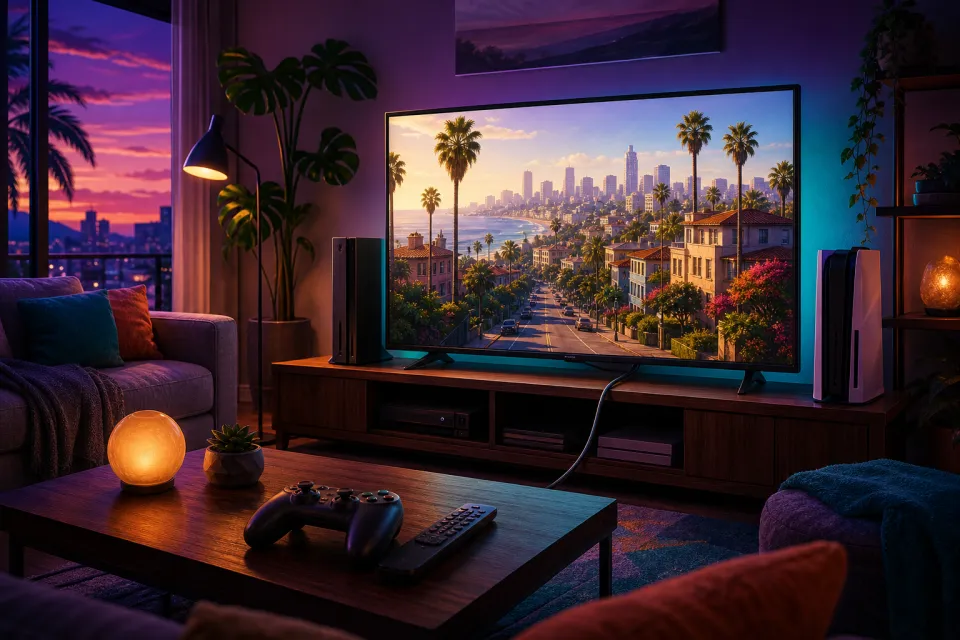
A practical display guide, not an expensive upgrade pitch
Before buying a television for GTA 6, check what your current screen and console already support. The useful upgrade might be a different HDMI port or a settings change—not a new TV.
As of November 16, 2026, Rockstar lists Grand Theft Auto VI for release on November 19 on PS5 and Xbox Series X|S. Crucially, its November 10 announcement confirms a target of 30 frames per second on current consoles.
That is a performance target, not a guarantee that every scene holds exactly 30fps. It also means you should not buy a 120Hz television expecting it to turn GTA 6 into a 120fps game.
Start with this question: does your existing setup deliver a stable picture, responsive controls and the best resolution it supports? Work through the checks below before deciding that anything needs replacing.
Resolution, HDR, refresh rate and VRR explained
These specifications describe different things. None, by itself, tells you how good GTA 6 will look or how fast its engine will run.
- Resolution: the number of pixels making up the picture. A 4K television has 3840 × 2160 pixels; 1080p has 1920 × 1080. More pixels can show finer detail, but a console sending a 4K signal does not prove the game renders every frame internally at native 4K.
- HDR: high dynamic range, which can give supported content brighter highlights and a wider range between dark and bright areas. It is about light and color, not sharper resolution or higher frame rates. Sony explains how to enable it in its PS5 HDR guide.
- Refresh rate: how often the screen updates, measured in hertz. A 120Hz screen can refresh 120 times each second; frames per second measures how many new images the game produces. Those are not interchangeable numbers.
- VRR: variable refresh rate, which lets a compatible display adjust its refresh timing to the incoming game frames. As Sony explains, this can reduce stuttering and screen tearing—the split-looking image caused by mismatched timing.
PS5 supports 4K at 120Hz with compatible equipment, and Xbox documents 4K/120Hz setup for Series X. Microsoft describes Series S as designed for 1440p gaming with 4K upscaling and support for up to 120fps. These are hardware capabilities, not GTA 6 mode promises.
VRR does not create extra game frames. Its usefulness depends on the display, supported operating range and game implementation. Likewise, Rockstar’s 30fps target does not establish a 40fps, 60fps or 120fps mode. Avoid treating hypothetical modes as reasons to spend.
Check your television and HDMI connection first
Find the TV’s complete model number in its settings or on its rear label, then open the manufacturer’s manual. Check the exact screen size too, rather than assuming every size in a product family has identical specifications.
Look for supported HDMI input resolutions and refresh rates. You want an explicit entry such as 3840 × 2160 at 120Hz, not just a large “motion” number on the packaging. Xbox’s own TV setup discussion warns that motion-marketing figures can differ from actual input capabilities.
- Use the correct HDMI port. Some televisions offer their highest-bandwidth features on only certain inputs. Check the manual and port labels.
- Enable the enhanced input setting. Names vary. Samsung calls one version Input Signal Plus; its official setup guide shows how to enable it for the connected port.
- Test a direct connection. Temporarily connect the console straight to the TV, bypassing a soundbar, receiver, HDMI switch or capture device. Xbox recommends this approach because intermediate equipment can limit the available signal.
- Check the cable before replacing the screen. For a 4K/120Hz connection, look for a certified Ultra High Speed HDMI cable. The HDMI cable guide distinguishes cable categories and certification labels.
Use your console’s supplied cable where appropriate, rather than automatically buying an expensive replacement. Xbox specifically recommends the supplied Series X cable in its TV preparation guide. If direct connection restores a missing feature, investigate the bypassed equipment before shopping for a television.
PS5: inspect Video Output, then calibrate HDR
Open Settings > Screen and Video > Video Output. Sony’s video-output instructions explain both the current signal readout and the connected display’s reported capabilities.
- Inspect the connection information. Check Current Video Output Signal and Information for the Connected HDMI Device. Note the reported resolution, HDR and VRR support.
- Start with Resolution set to Automatic. This lets PS5 select the highest resolution the connected setup reports supporting.
- Set 120 Hz Output to Automatic if supported. This allows compatible games to use it; it does not force GTA 6 to produce 120fps.
- Use VRR’s Automatic setting with a compatible display. Leave Apply to Unsupported Games off initially. Sony advises disabling that option if it causes unexpected behavior.
Next, follow Sony’s HDR instructions: choose HDR > On When Supported, then run Adjust HDR and follow the on-screen visibility prompts. Do not simply maximize every slider.
Before calibrating, select the TV’s gaming picture mode. Sony’s output guide also describes ALLM, or auto low-latency mode, which lets compatible televisions switch automatically to a lower-delay mode during gameplay. This addresses display responsiveness, not the game’s rendering speed.
Xbox Series X|S: read 4K TV details before changing modes
Open Settings > General > TV & display options > 4K TV details. This compatibility checklist is more useful than guessing from a television’s retail description; Microsoft’s setup guide recommends it for checking 4K and HDR support.
- Read the checklist first. Record what the console detects for resolution, HDR and refresh-rate support.
- Choose a supported resolution and refresh rate. Use 4K UHD where supported. Select 120Hz only if your connection supports that combination; otherwise, 60Hz is a sensible setting.
- Review Video modes. Enable supported options such as Allow 4K, Allow HDR10, auto low-latency mode and variable refresh rate. Check Xbox’s 120Hz guidance if the expected option is missing.
- Run Calibrate HDR for games. Find it under TV & display options and follow the patterns rather than copying someone else’s brightness numbers.
Microsoft also documents Dolby Vision gaming on Series X|S with compatible televisions. That console feature alone does not establish a particular GTA 6 HDR implementation. Do not make it a must-have purchase requirement based on assumption.
When keeping your TV makes more sense
Keep a working 4K/60Hz television if you like its picture and responsiveness. Given Rockstar’s confirmed 30fps target, replacing it solely to obtain a 120Hz label is not a convincing GTA 6 upgrade plan.
If a supported feature is missing, repeat the port, enhanced-input and direct-connection checks first. If the picture becomes unstable after enabling a feature, undo the last change and test again. Sony’s troubleshooting guidance includes disabling problematic 120Hz output and checking the HDMI connection.
Consider a replacement only when you can name the problem you want solved: an uncomfortable screen size, poor visibility in your room, an unsatisfactory picture or missing capabilities you will also use in other games. Check the exact model’s manual before paying.
The sensible order is simple: verify the connection, enable supported features, calibrate the picture, then try the game. Buy a TV to fix a real limitation—not to chase a frame rate the game has not promised.
Sources: rockstargames.com, PlayStation, sony.com, Xbox, samsung.com
Watch next
 Read next:Best PS5 Controller Charging Stations for Holiday 2026
More stories
Best Meta Quest 3 & 3S Accessories for Holiday 2026
Five worthwhile head straps, charging docks and carrying cases, with clear advice on compatibility, comfort and holiday gifting.
Buying a Laptop for Roblox Before Black Friday 2026
A parent-friendly checklist for compatibility, graphics, memory and storage—plus the real-world tests and safety settings to check before keeping a l…
Can Your PC Run ARC Raiders? Check Before Buying New Gear
Find your PC’s processor, graphics card and RAM, compare them with Embark’s requirements, and learn what to test before spending money.