Buying a Laptop for Roblox Before Black Friday 2026
A parent-friendly checklist for compatibility, graphics, memory and storage—plus the real-world tests and safety settings to check before keeping a laptop.
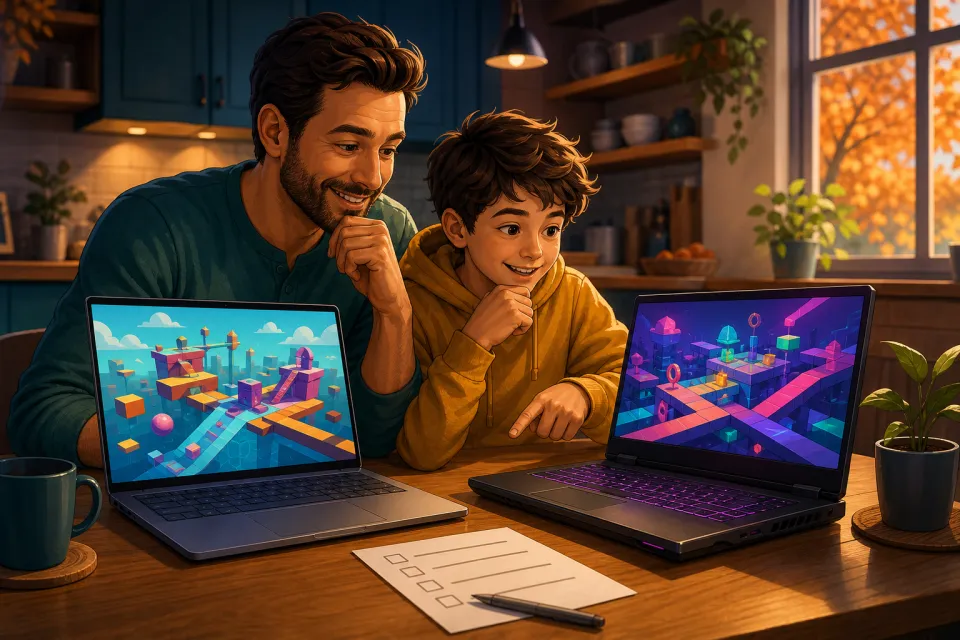
You do not automatically need a gaming laptop for Roblox. For a family shortlist, we would start with a supported operating system, 16GB of memory and a 512GB solid-state drive, then check graphics performance in the experiences your child actually plays. Those are our buying targets, not Roblox’s official minimums or a guarantee of performance.
As of November 4, there is time to compare before Black Friday on November 27, 2026. The key question is not simply whether a laptop launches Roblox, but whether your child enjoys using it.
1. Treat Roblox’s minimum requirements as a starting line
Roblox’s official computer requirements list these hardware baselines:
- Windows graphics: DirectX 10 feature-level support or higher—the graphics capability the application requires.
- Processor: A recent processor, described as 2005 or newer, running at 1.6GHz or faster.
- Memory: At least 1GB on Windows.
- Installation storage: At least 300MB.
Do not use those small numbers as a shopping specification. They are not a promise that a laptop will deliver comfortable play in every experience while also handling everyday schoolwork.
Roblox also recommends, for best performance, either a computer under five years old with dedicated graphics or a laptop under three years old with integrated graphics. That is useful guidance, but still not a substitute for testing your chosen laptop.
Write down three favorite experiences before shopping. A buying decision should reflect those games, your child’s preferred visual quality and the other work the laptop needs to do—not just an installation checklist.
2. Check the operating system before comparing deals
Roblox currently lists 64-bit Windows 10 or Windows 11 and macOS 10.13 or later for its computer app. Linux is not officially supported. These compatibility details come from the official requirements linked above.
For a Windows purchase, our advice is to choose a laptop officially supported by Windows 11. Microsoft’s Windows lifecycle information confirms that standard Windows 10 support ended on October 14, 2025. Roblox compatibility and ongoing operating-system security support are separate questions.
A Chromebook needs a different check. Roblox’s Chromebook guidance says it uses the Android mobile app through Google Play. Confirm that the exact device can enable Google Play, then test keyboard, mouse and camera controls in your child’s favorites. Do not assume it behaves identically to the Windows app.
For a refurbished Mac, check whether that specific model still receives appropriate security updates; meeting Roblox’s old installation floor is not enough. For any unfamiliar processor platform, ask for confirmation that the official Roblox app works on that exact configuration. Avoid buying on a vague “runs Windows” claim.
3. Decide whether integrated graphics are enough
The graphics processing unit, or GPU, draws the game’s visuals. Integrated graphics are built into the computer’s processing hardware; dedicated, also called discrete, graphics provide separate graphics hardware. Microsoft’s GPU explainer describes the usual trade-off: integrated graphics favor efficiency and lighter laptops, while discrete graphics target heavier workloads.
Intel’s graphics-memory guidance also explains that its integrated graphics use system memory rather than a separate video-memory bank. A listing advertising “shared graphics memory” is not promising a dedicated gaming GPU.
- Start with integrated graphics if portability, schoolwork and a lower overall cost matter most. Require evidence from the exact laptop before assuming your child’s games will run comfortably.
- Consider dedicated graphics if your child wants higher visual settings, plays demanding experiences or also needs the laptop for other graphically intensive games.
- Compare complete configurations: Record the exact processor, GPU and memory, rather than relying on “gaming laptop” or a processor-family badge.
Our preference is to spend on demonstrated performance rather than styling. A dedicated GPU is worth considering when testing reveals a need, not simply because a sale page puts “gaming” in large letters.
4. Give memory and storage separate checks
Memory, or RAM, is working space; storage holds installed software and files. They are not interchangeable. A laptop with a large drive can still have limited working memory, as explained in HP’s memory and storage guide.
For this purchase, our preferred target is 16GB RAM. We would consider 8GB only for a tighter budget, with realistic multitasking expectations and a return window for testing. We would not choose 4GB for a new family Windows laptop intended for both schoolwork and Roblox. These are editorial buying recommendations, not official Roblox requirements.
For storage, we suggest a 512GB SSD; 256GB can be a compromise if the family is comfortable managing files. Microsoft explains that solid-state drives are faster than traditional hard drives. Roblox’s installation figure should not become your entire storage budget.
Before checkout, ask whether RAM and storage can be upgraded. Treat “upgradeable” as something to verify in the exact model’s documentation. If you plan to add memory later, confirm that the configuration actually supports it rather than assuming every laptop does.
5. Test favorite experiences during the return window
Make the return policy part of the purchase. Check the deadline, restocking fees and any restrictions on opened computers, then test promptly instead of leaving the laptop boxed until gift day.
- Prepare it normally. Install operating-system updates and manufacturer-approved drivers, then install the official Roblox app. Use the supplied charger and a hard surface.
- Play representative sessions. Try each favorite experience for around 20–30 minutes, including crowded areas, busy effects, fast camera movement and normal activities—not just the starting screen.
- Set a family target. For example, aim for roughly 60 frames per second at an agreed graphics setting. That is a suggested comfort target, not a universal requirement.
- Check everyday use. Repeat with the browser tabs your child normally needs. Listen to fan noise and assess keyboard comfort, screen visibility and responsiveness.
- Try battery use separately. If unplugged play matters, test it directly rather than assuming the plugged-in result represents it.
When play feels rough, use Roblox’s lag troubleshooting guide. Choppy visuals can point toward graphics limitations; delayed actions or players jumping around can indicate connection trouble. Lower graphics through the in-experience Settings menu and close unnecessary apps before blaming the laptop.
6. Set up parental controls and reject unofficial boosters
Before the first unsupervised session, follow Roblox’s parent-account setup instructions. In the child’s Settings, open Parental Controls, select Add parent and complete the official linking and adult-verification steps.
Then open Settings, Parental controls and your child’s account from the linked parent account. Use the current parental-controls overview to review content access, communication, spending and screen time where available. Controls depend on age; do not assume a teenager has the same limits as a younger child. Note that spending limits do not cover gift-card redemption.
Do not install unofficial performance boosters to rescue a disappointing purchase. Avoid tools asking you to disable security protection, share account credentials or replace the Roblox app. Roblox’s anti-cheat guidance warns against modified apps and software that changes how Roblox works; its exploiting warning notes that scam downloads can contain malware that steals passwords.
Before paying, save the exact model number, configuration, final price, warranty and return deadline. Keep the laptop only if it passes your family’s real tests. A larger advertised discount is not a better deal when the device cannot comfortably do the job.
Sources: timeanddate.com, Roblox Help, microsoft.com, intel.com, hp.com
Watch next
 Read next:Can Your PC Run ARC Raiders? Check Before Buying New Gear
More stories
Best Nintendo Switch 2 Accessories for Holiday 2026
Five useful family gifts, from a comfortable controller and protective case to extra storage and a charging upgrade.
Steam Frame: Do You Need a Gaming PC? Which Games Work?
Steam Frame can stream PC games or run compatible titles on its own. Here’s how to check your computer, wireless setup and library before buying.
Best Gaming Headsets for Kids: Holiday Gift Guide 2026
Five gift-worthy picks, from a smaller headset for younger players to a wireless upgrade for teens.