Can Your PC Run ARC Raiders? Check Before Buying New Gear
Find your PC’s processor, graphics card and RAM, compare them with Embark’s requirements, and learn what to test before spending money.
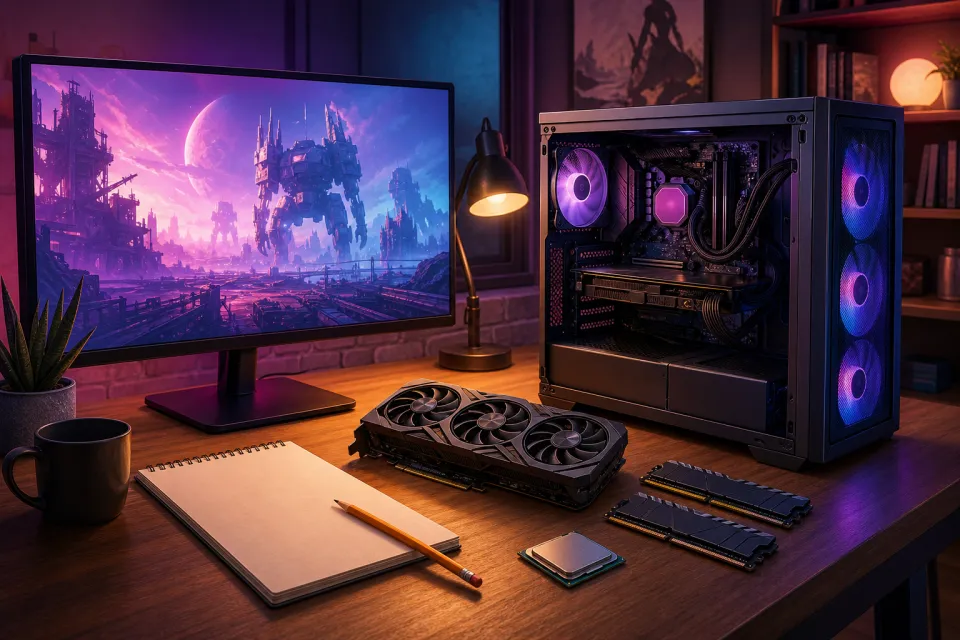
Check your existing PC before shopping for upgrades. ARC Raiders’ published minimum includes 12GB of RAM and graphics cards such as the GTX 1050 Ti, but meeting a specification is not a guarantee of smooth play. Your processor, graphics card, settings and actual gameplay results all matter.
This checklist uses Embark’s published requirements checked on October 29, 2026. Start by recording what you own, then compare each component separately.
1. Find your processor, memory and graphics card
You can collect the important details with Windows’ built-in tools. You do not need to download a third-party “PC scanner.”
Processor and system memory
- Open Start > Settings > System > About.
- Under Device specifications, copy the full Processor name.
- Record Installed RAM, the computer’s working memory.
- Check System type for a 64-bit operating system, and note your Windows version.
These steps follow Microsoft’s device-information guide. Copy the whole processor name, including letters at the end. “Intel Core i5” or “AMD Ryzen 5” alone does not identify the chip.
Graphics card and graphics memory
- Press Ctrl + Shift + Esc to open Task Manager.
- Select Performance, then examine each GPU entry.
- Record the full graphics processor name and, where shown, its dedicated GPU memory.
Alternatively, press Windows + R, type dxdiag, press Enter, and check the Display tab. Microsoft explains both methods in its PC specification checklist.
RAM and graphics memory are different. Record installed system RAM for comparison with Embark’s 12GB or 16GB requirement; do not add dedicated graphics memory to it. If two GPUs appear, write down both rather than assuming GPU 0 is the faster one.
2. Compare your PC with Embark’s published requirements
The official Steam listing gives these minimum and recommended specifications. Alternatives separated by “or” are choices, not components you need together.
| Component | Minimum | Recommended |
|---|---|---|
| Operating system | Windows 10 or later, 64-bit, latest update | Windows 10 or later, 64-bit, latest update |
| Processor | Intel Core i5-6600K or AMD Ryzen 5 1600 | Intel Core i5-9600K or AMD Ryzen 5 3600 |
| System memory | 12GB RAM | 16GB RAM |
| Graphics | NVIDIA GeForce GTX 1050 Ti, AMD Radeon RX 580 or Intel Arc A380 | NVIDIA GeForce RTX 2070, AMD Radeon RX 5700 XT or Intel Arc B570 |
| DirectX | Version 12 | Version 12 |
| Connection | Broadband internet | Broadband internet |
Embark’s requirements FAQ, labeled last updated October 1, 2025, also publishes performance targets:
- Minimum: Low graphics, 1080p, 60 frames per second.
- Recommended: High graphics, 1440p, 60 frames per second.
- Epic: Epic graphics, 1440p, 90 frames per second, with resolution scaling set to Quality.
The Epic hardware tier lists an Intel Core i7-9700K or AMD Ryzen 7 3700X, 16GB RAM, and an RTX 4070 Ti, RTX 5070 or Radeon RX 7900 XTX. You do not need that tier simply to play.
3. Treat performance targets as targets, not promises
Embark does provide frame-rate targets; these are not measurements of your PC. Frames per second, or fps, describes how many pictures the game produces each second. A 60fps target does not establish that every match will stay at 60fps.
Compare the complete configuration, not just the graphics card. Steam’s hardware troubleshooting guidance recommends testing the computer when investigating performance problems rather than assuming the game alone is responsible.
- Check every row: having 16GB RAM does not compensate for a graphics card below the minimum.
- Keep full model names: do not rank processors using only “i5 versus i7,” or graphics cards using only their memory capacity.
- Mark unfamiliar parts as uncertain: look for tests of the exact component instead of guessing from its name.
For laptops, seek results for the specific laptop model. NVIDIA’s laptop specifications show power ranges for individual GPU models, so a matching GPU label alone does not describe the entire machine.
When reading benchmarks, check resolution, graphics preset, processor, game version and whether image-scaling features were enabled. A differently configured test is useful context, not a personal forecast.
4. Check Windows, storage and the selected GPU
The Windows requirement and Windows security support are separate questions. Microsoft’s free standard Windows 10 support ended on October 14, 2025; a game listing Windows 10 does not mean an unmaintained installation is secure. Check your supported update options through Microsoft’s guidance.
For storage, open Settings > System > Storage and check the intended installation drive. The Steam requirements table above does not publish a storage-capacity figure. Check the launcher’s current installation prompt rather than treating an old download-size estimate as authoritative, and leave space for updates.
If your computer has integrated graphics plus a separate gaming GPU, verify the game’s graphics preference. In Windows 11, Microsoft documents Settings > System > Display > Graphics, where you can select an application’s High performance GPU preference. Restart the game after changing it.
5. Test gameplay before deciding what to replace
If you already have access to ARC Raiders, use this repeatable checklist. If you do not, look for recent testing of closely matched hardware before buying; do not assume a free trial is available.
- Prepare a clean baseline. Restart the PC, finish downloads and close unnecessary applications. Check graphics drivers through the manufacturer’s official tools, as recommended in Embark’s crash and launch guide.
- Record the setup. Note resolution, graphics preset, scaling mode and any frame-generation setting. Resolution scaling changes the rendering workload; different configurations are not directly comparable.
- Begin conservatively. For hardware near minimum, use Embark’s Low/1080p target as the starting point, not evidence that your PC will sustain 60fps.
- Test actual matches. Include movement, combat and several locations. Do not judge the computer from a menu or one quiet scene.
- Watch consistency. Record noticeable freezes, repeated dips and aiming responsiveness alongside any fps reading. One high number does not establish smooth performance.
- Change one variable. Adjust one setting or close one background application, then repeat a similar test. Keep notes so you know what helped.
Treat this as a diagnostic exercise, not a formal benchmark. If a change helps once, repeat it before spending money. If the game crashes, follow Embark’s troubleshooting first; a crash alone does not prove you need a new GPU.
6. Upgrade only after identifying the shortfall
Use your notes to make a purchase decision:
- Below 12GB RAM: you are below the published memory minimum. Check your computer’s supported memory upgrades.
- Between minimum and recommended: test lower settings before replacing otherwise usable hardware.
- At recommended but unhappy: investigate configuration and reproducible performance problems before assuming a stronger graphics card is the answer.
Before ordering parts, have the PC manufacturer or a qualified installer confirm memory compatibility, processor support, graphics-card clearance, power supply capacity and connectors. For a laptop, verify what is actually replaceable in its service documentation.
The requirements table is a screening tool, not a shopping list. Identify your exact hardware, choose a realistic settings target, and test the experience you want before buying new gear.
Sources: microsoft.com, steampowered.com, embark.games, nvidia.com
Watch next
 Read next:Best Nintendo Switch 2 Accessories for Holiday 2026
More stories

Steam Frame: Do You Need a Gaming PC? Which Games Work?
Steam Frame can stream PC games or run compatible titles on its own. Here’s how to check your computer, wireless setup and library before buying.

Best Gaming Headsets for Kids: Holiday Gift Guide 2026
Five gift-worthy picks, from a smaller headset for younger players to a wireless upgrade for teens.
Best Headsets, Keyboards, and Chairs for Gamers: Top Picks in 2025
Upgrade your setup with the best gaming gear in 2025. Discover top-rated headsets, keyboards, and chairs to level up your performance and comfort.