Steam Frame: Do You Need a Gaming PC? Which Games Work?
Steam Frame can stream PC games or run compatible titles on its own. Here’s how to check your computer, wireless setup and library before buying.
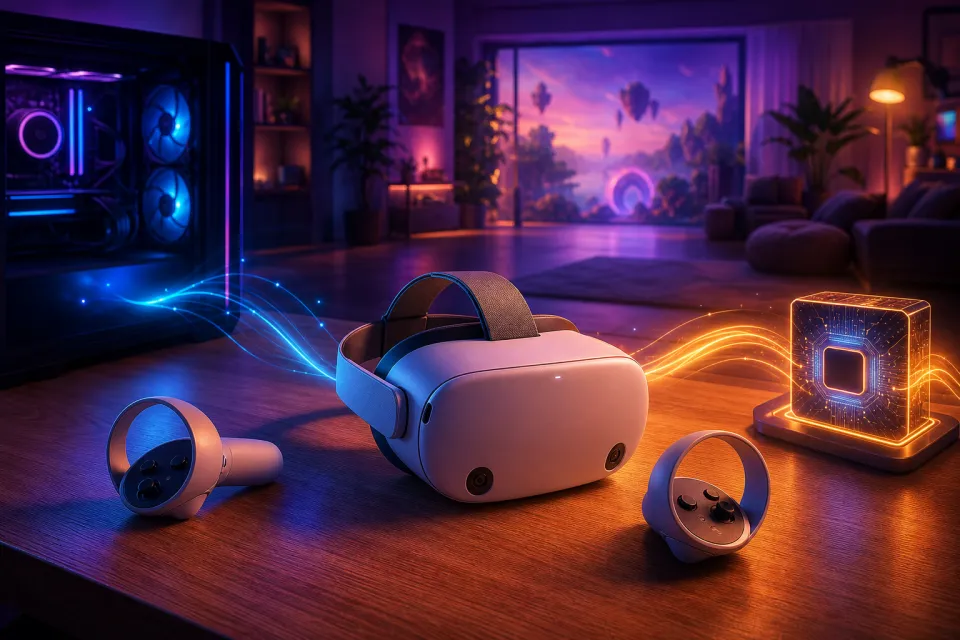
A compatibility guide before readers buy
You do not need a gaming PC for every Steam Frame game. Compatible games can run directly on the headset. But when you stream a game from a computer, that computer does the demanding work—and must be powerful enough for the game you want to play.
That distinction matters more than whether a title simply appears in your Steam library. Valve’s Steam Frame documentation confirms support for both streamed and standalone experiences, including VR and non-VR games. It does not guarantee that every Steam purchase runs well on the headset itself.
This guide reflects the documentation checked on October 23, 2026. Before spending money, answer three questions: Where will your games run? Can your equipment support that mode? And what evidence confirms compatibility for your must-play titles?
Streaming versus standalone: where the game runs
PC streaming means the game runs on your host computer. The headset receives its picture and sound and sends your controls back. Think of Frame as the wireless display and input device, not a replacement graphics card for the computer.
Standalone play means installing and running the game on Frame’s own hardware. Valve describes Frame as a SteamOS device; SteamOS is its Linux-based operating system. Local play therefore has different software and performance requirements from running the same game on a Windows desktop.
| Question | Streaming from a PC | Running standalone |
|---|---|---|
| Where does the game run? | On the host computer | On the headset |
| What determines performance? | The host computer and streaming connection | The headset’s hardware and game compatibility |
| Is a host PC needed during play? | Yes | No, for compatible local games |
| Which compatibility evidence matters? | Host requirements, VR support and controls | Frame-specific standalone testing |
Valve’s feature and troubleshooting guide says standalone games require a local installation. It also explains that streaming uses a host PC’s library. Neither mode should be confused with a subscription service that supplies a remote gaming computer.
Computer checklist: can your PC do the work?
For streaming, start with the game’s requirements—not the headset’s standalone specifications. A laptop that handles a lightweight controller game should not automatically be treated as suitable for demanding PC VR.
- List your actual hardware. Record your processor, graphics card, memory and operating system. Compare them with each must-play game’s published requirements.
- Check the VR requirements separately. Look for SteamVR support and any game-specific controller or play-space requirements.
- Leave room for realistic expectations. Treat minimum specifications as a starting point, not a promise of your preferred graphics quality or streaming performance.
- Check current host support. Valve’s support guide currently lists full SteamVR and wireless-adapter streaming support on Windows. It warns that desktop Linux and Steam Machine support is not yet complete.
- Update before troubleshooting. Valve recommends updating the host’s Steam client and SteamVR, along with Frame’s software.
For a concrete example, Half-Life: Alyx’s Steam listing identifies it as VR-only, lists SteamVR support and specifies PC hardware requirements. Those details help you evaluate a streaming host; they do not establish that Alyx runs directly on Frame.
If someone recommends a computer because it “runs Steam,” ask a more useful question: does it run your particular game well in the mode you intend to use? Avoid buying a PC upgrade until you have identified the actual limitation.
Wireless checklist: plan the room, not just internet speed
Valve documents an included 6GHz wireless adapter that provides a dedicated streaming link. Its product information also describes dual radios and Multi-Link Streaming, which work together to make the connection more robust.
The practical takeaway: do not judge readiness solely by your broadband download speed. Your headset-to-PC connection and the physical arrangement of the room deserve their own checks.
- Choose the play area first. Work out where you will stand or sit, then check whether the computer and adapter can serve that space.
- Give the adapter a clear position. Valve recommends a clear line of sight and placement within roughly 20 feet of the play space.
- Plan for local Wi-Fi too. Valve says streaming uses the adapter together with your local wireless connection.
- Troubleshoot before replacing equipment. Try another available Wi-Fi band and investigate interference using Valve’s guidance.
Valve’s network troubleshooting page covers connection problems and interference. Do not assume you need an expensive new router simply because Frame supports newer wireless technology; first identify which connection is causing trouble.
For a household setup, sketch the actual arrangement before buying: computer location, adapter position, play area and nearby obstacles. That is more useful than planning around an ideal empty room you will never use.
Library checklist: which games will work?
Build two lists: games you want to stream and games you need to run without a PC. Keep those lists separate throughout your research.
For standalone games, check Frame’s own rating
Valve’s Standalone Compatibility Review Process applies to games running locally, not streamed PC games. Its ratings mean:
- Verified: passes Valve’s compatibility checks without user configuration.
- Playable: works, but may require adjustments.
- Unsupported: does not function because of software or hardware incompatibility.
- Unknown: has not completed the review process.
Read the detailed result, not just the badge. Unknown does not prove a game is broken, but it is not a sound foundation for a must-have purchase. Likewise, a Steam Deck rating should not replace Frame-specific evidence.
Understand what the compatibility software actually promises
Valve’s standalone software documentation describes Proton for Windows games, FEX for translating conventional PC processor instructions to Frame’s Arm processor, and Lepton for Android software.
These systems make more games possible; they do not certify every title. Android support also should not be read as proof that every Android game, storefront purchase or headset-exclusive release is available on Frame.
Multiplayer deserves extra scrutiny. Valve’s Proton guidance explains that support for common anti-cheat systems can require developer action. A Windows game’s online mode working on your PC does not establish standalone compatibility.
Check controls as well as launchability
Valve’s input documentation confirms that Frame controllers support conventional gamepad functions and tracked VR input. Non-VR titles can use Steam Input mappings, including gamepad or keyboard-and-mouse-style inputs.
That flexibility is useful, but ask whether the result suits the game. Check text entry, inventory management and frequently used shortcuts. For VR, confirm usable controller bindings rather than assuming every older control scheme transfers perfectly.
The final buying test
Make a short checklist for your five most important games. Beside each, record the intended mode, compatibility evidence, required equipment and any unresolved questions.
- No gaming PC? Buy around confirmed standalone games, not an assumed full-library replacement.
- Already own a capable PC? Investigate streaming, while checking wireless placement and controls.
- One essential game remains unverified? Wait for reliable game-specific confirmation before committing.
For family use, also review each game’s content, online interactions and purchase settings. Choose a clear play space away from stairs, pets and fragile objects, and follow the headset’s current safety instructions.
Check Valve’s official store for current US pricing, availability and package contents rather than relying on an old announcement. Buy for the games and setup you can verify—not compatibility you hope will arrive later.
Sources: steamgames.com, steampowered.com
Watch next
 Read next:Best Gaming Headsets for Kids: Holiday Gift Guide 2026
More stories
Best Headsets, Keyboards, and Chairs for Gamers: Top Picks in 2025
Upgrade your setup with the best gaming gear in 2025. Discover top-rated headsets, keyboards, and chairs to level up your performance and comfort.
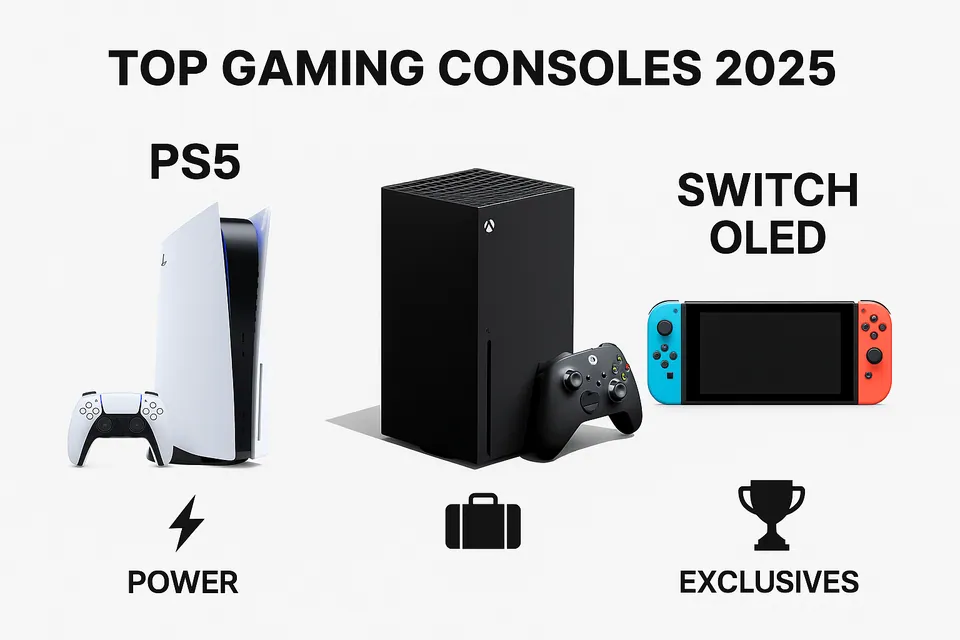
Console Showdown 2025: PS5 vs Xbox Series X vs Nintendo Switch – Which Reigns Supreme?
Wondering which gaming console is best in 2025? We compare the PS5, Xbox Series X, and Nintendo Switch in performance, exclusives, and value to help …
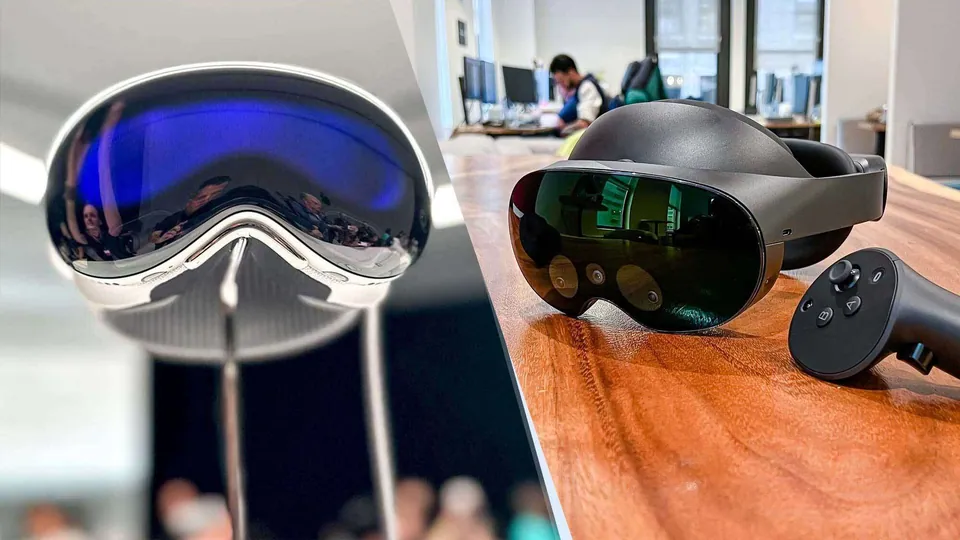
Apple Vision Pro vs. Meta Quest Pro: Which is better?
Check out the complete comparison on apple vision pro vs. meta quest pro. So that you ca take informed decision before buying.