Minecraft on Switch 2: Free Upgrade and World Transfer Guide
Digital owners get a limited-time free upgrade, while cartridge owners have a different offer. Here’s how to prepare your worlds and understand the graphics changes.
Answer the questions existing owners have first
The Minecraft Switch 2 free upgrade is for eligible digital owners—not everyone who owns a cartridge. In the United States, owners of the digital Nintendo Switch version can claim the digital Switch 2 Standard Edition through Nintendo eShop during a limited-time promotion ending January 31, 2027. Mojang confirms this in its upgrade announcement.
As of October 26, 2026, the native Switch 2 game has not launched: its release date is October 27, 2026, according to Minecraft’s release announcement. Preordering or downloading ahead of release does not mean it is playable today.
Your builds are not being left behind. Nintendo’s listing confirms that Nintendo Switch worlds can carry over. However, the listing does not provide a complete, step-by-step native-version import procedure. Keep your original installation and saves until you have checked your worlds in the new game.
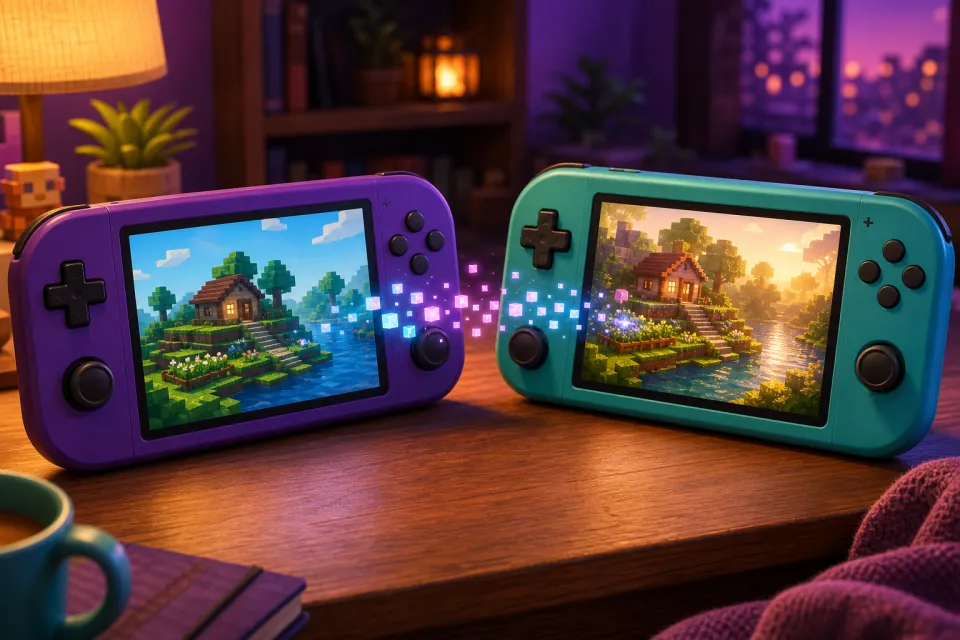
The other important catch: enhanced lighting and shadows come through Vibrant Visuals, but Vibrant Visuals does not work in split-screen. Couch multiplayer remains an option; the enhanced graphics do not remain active during it.
Digital versus physical: claim the right offer
If you own the digital Switch game
Mojang’s promotion provides the Standard Edition free in the US, with discounted Deluxe and Ultimate options. It is an eShop offer, not a promise that every retailer or boxed release will be free.
- Check which Nintendo Account originally acquired the digital Switch game.
- Open Nintendo eShop with that account and locate Minecraft for Nintendo Switch 2.
- Select Standard Edition if you want the no-cost option.
- Check the final checkout total before confirming. If it is not free, stop and verify the account, platform version and edition rather than paying immediately.
- Keep the confirmation and claim the offer before its January 31, 2027 deadline.
These are practical purchase checks, not a substitute for any account-specific eligibility message displayed by Nintendo eShop.
If you own a Switch cartridge
The announced free Standard Edition offer does not cover physical ownership alone. Instead, Nintendo describes a discounted digital Ultimate Collection offer for all players, including cartridge owners.
To receive that invitation, launch the original Switch version of Minecraft on your Switch 2 between October 27, 2026, at 9 a.m. Pacific and January 31, 2027, at 9 a.m. Pacific. Follow the in-game message and check the price before accepting. The exact window and physical-owner eligibility appear on Nintendo’s product page.
Do not buy a second copy simply because you expected a conventional upgrade pack. Check Minecraft’s specific offer first.
Standard, Deluxe or Ultimate: what actually changes?
All three digital editions include Minecraft and the Super Mario Mash-Up Pack, updated for Vibrant Visuals. The collections add content and currency; Standard already includes the new visual experience. Mojang lists the differences in its edition announcement.
| Edition | Included extras |
|---|---|
| Standard | Base game and Super Mario Mash-Up Pack. |
| Deluxe Collection | Celebration Food, Rescue Dogs and Plenty O’Blocks add-ons; three exclusive Character Creator items; 700 Minecoins. |
| Ultimate Collection | Those three add-ons plus Decocraft and Weapons + Tools; five exclusive Character Creator items; 1,000 Minecoins. |
Minecoins are Minecraft’s paid Marketplace currency. Mojang specifies that the coins included with these collections must be used within the Nintendo ecosystem.
Our advice: choose Standard unless you specifically want the extras. Compare any discounted collection against what your family already owns, rather than treating the largest bundle as necessary for transferring worlds or improving graphics.
How to prepare and move your Minecraft worlds
Separate two jobs: moving the original Switch save onto the new console, and making that world available inside native Switch 2 Minecraft. A console transfer handles the first job; do not assume it proves the second is finished.
Option 1: Nintendo’s console-transfer tools
If you are setting up a Switch 2 for the first time, Nintendo’s System Transfer guide explains how to bring across users, saves and settings. Use local transfer if you have both consoles, and read the warnings before choosing a server-based transfer.
If your Switch 2 is already configured, Nintendo offers Transfer Your Save Data. Both consoles need internet access, must be nearby, and must use the same Nintendo Account for the relevant user. Nintendo Switch Online is not required for this transfer.
Warning: the individual save-transfer option moves data; it does not create a backup. Nintendo says the source save is deleted after transfer. Overwriting an existing destination save also deletes that destination data.
Option 2: Nintendo Switch Online cloud backup
For supported software, subscribers can back up a save and download it on another console. Nintendo’s cloud-save instructions use the game’s HOME Menu options: press the plus or minus button, choose Save Data Cloud, select the user, then back up or download.
Check the backup date before downloading. Treat restoring the original game’s save and importing it into a different native application as separate checks.
Option 3: Minecraft Realms
Realms is Minecraft’s subscription-based private-server service. Its official Bedrock transfer procedure provides another route between supported devices:
- Update Minecraft on both devices and confirm an active Realms subscription or eligible trial.
- On the source device, open your Realm’s management options and upload the local world to an empty slot, or replace a slot you have safely backed up.
- On the destination, sign into the same Microsoft account and open that Realm.
- Use Download World to create a local copy, then open it and inspect your builds.
This is general Bedrock guidance, not a newly documented Switch 2 import button. Do not purchase a subscription solely because you assume the native upgrade requires one.
Vibrant Visuals: better lighting, but not in split-screen
Mojang’s Switch 2 announcement says Vibrant Visuals is enabled by default in the native release. It adds directional lighting, moving shadows, atmospheric fog and water effects. Think of it as a new way of drawing your existing world, not a replacement world.
The Vibrant Visuals FAQ confirms that it is cosmetic: it does not change gameplay, and existing worlds can use it. Friends on Realms can play together even when they use different graphics settings.
When additional players join locally in split-screen, Minecraft switches to Fancy or Simple rendering. Some Marketplace worlds and content also cannot use Vibrant Visuals. That does not automatically mean your installation is broken.
To check the mode, save and exit your world, then open Settings, Video and Graphics Mode. Minecraft’s graphics-settings guide notes that changing to Vibrant Visuals can be unavailable while actively playing a world.
Before removing the old installation: your final checklist
- Open every important world. Visit familiar builds and check inventory, storage and recent progress.
- Test saving. Make a small change, save, exit and reopen the world.
- Check each family member’s profile. Do not assume one successful transfer covers everyone.
- Keep a verified backup. Do not erase the old console or delete saves while troubleshooting missing worlds.
- Review spending and multiplayer permissions. For children, check purchase restrictions and who can join before exploring Marketplace extras or online play.
The safest sequence is simple: claim the correct offer, preserve your saves, verify your worlds, and only then consider removing the older installation.
Sources: minecraft.net, nintendo.com
Watch next
 Read next:How to Stay Safe While Playing Roblox R63 Games (2025 Guide)
More stories
Best Games You Can Play in Your Browser with Now.gg (2025)
No downloads required. Discover the best game types for Now.gg in 2025 and get performance tips for Chromebooks, Macs, and PCs.
Roblox R63 Avatars: The Complete 2025 Guide (Customization + Safety)
Want to make a Roblox R63 avatar in 2025? Learn how to customize your character, find the best avatar ideas, and stay safe while following the R63 tr…
Grow a Garden on Roblox: How to Build the Perfect Farm
Learn how to master Grow a Garden on Roblox and build the ultimate farming paradise. From planting tips to expansion tricks, here’s everything you ne…